 Download Plus
Safari can save a file to your iPhone, and for an occasional PDF that is all you need. But once you download often — lecture recordings, podcast episodes, large videos, ZIP archives, work documents — you start wanting more: a queue you can pause, downloads that survive a weak connection, and a library that sorts itself.
That is what a download manager for iPhone does. This guide explains what a good one should offer, how to download files on iPhone step by step, and how to set up Download Plus, a private download manager for iPhone, iPad and Mac.
What a download manager for iPhone does
A download manager takes a link to a file and handles everything that comes after it:
- Downloads in the background, so you can switch apps or lock the screen.
- Pauses, resumes and retries, so a large file doesn't start over when the network drops.
- Shows progress for each file, with speed and time left.
- Organizes files by type — videos, audio, documents, images and archives.
- Opens and plays files without a separate app for every format.
Safari and the Files app are fine for a single file now and then. A dedicated iPhone download manager is worth it when you download regularly, handle big files, or want everything in one tidy place.
What to look for in an iPhone download manager
Use this checklist when you compare apps. The right column shows how Download Plus handles each point.
| Feature | Why it matters | Download Plus |
|---|---|---|
| Background downloads | Keep downloading while you use other apps | Yes |
| Pause, resume and retry | Large files don't restart from zero | Yes, with speed and time left |
| Many file types | One app for video, audio, PDF, documents, images and ZIP | Yes |
| Auto-sorted folders | Find files without digging | Videos, Sounds, Documents, Images, Archives and your own folders |
| Offline players | Watch and listen without another app | Video with Picture in Picture, audio with lock-screen controls, photo viewer, PDF preview |
| Files app access | Use downloads in other apps | Yes, in Files › On My iPhone › Download Plus |
| Privacy | Your files and links stay yours | No account needed, no tracking, Data Not Collected |
| Fair price | No surprise subscription | Free plan; Lifetime Pro is a one-time purchase |
How to download files on iPhone with Download Plus
There are three ways to start a download.
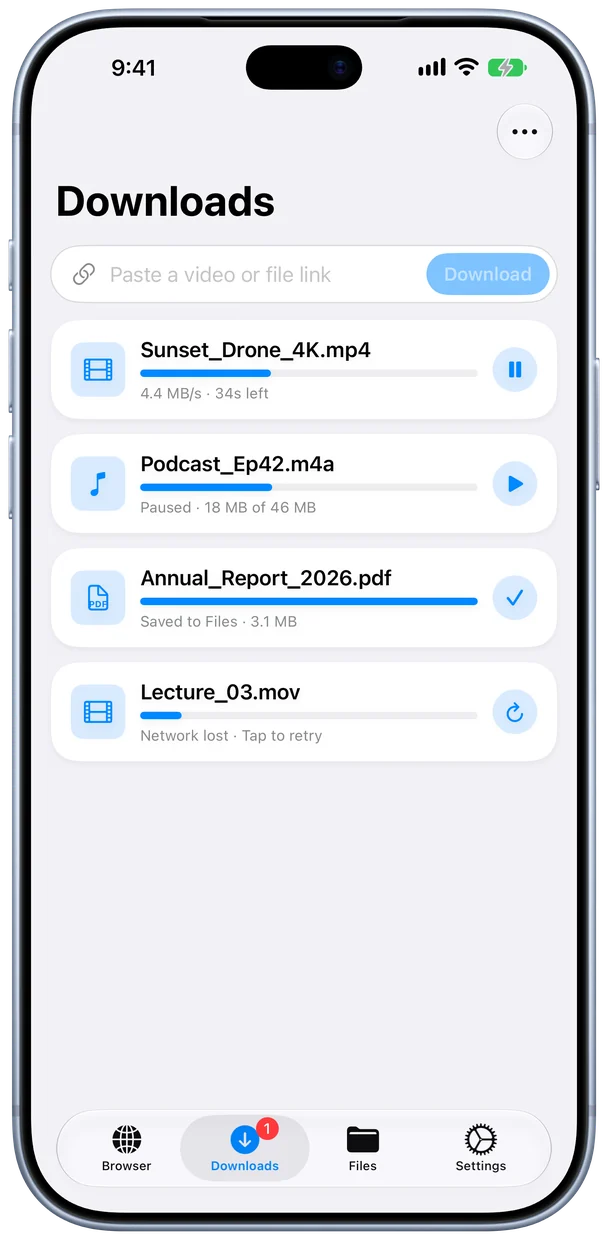
- Paste a link. Copy a direct file link, open the Downloads tab, paste it into the link field and tap Download.
- Find it on a page. Open the page in the built-in browser. When Download Plus finds a direct video, audio file or document, a card shows its type and size. Tap Download — or long-press any file link and choose Download Link.
- Share from Safari. Tap the Share button in Safari and choose Save to Download Plus.
Large files and weak connections
Downloads keep going in the background. If the connection drops, the download stops with a clear message and a Retry button, and it continues from where it stopped when the server supports resuming. You decide in Settings whether downloads may use cellular data.
What the free plan includes
The free plan includes 5 video downloads up to 720p, unlimited audio, documents and other files, and two downloads at a time. Lifetime Pro is a single purchase that unlocks unlimited video downloads in up to 4K, six downloads at a time, ZIP extraction and iCloud Sync on all your devices.
Organize, play and share your downloads
Finished downloads land in folders by type, so a video goes to Videos, an MP3 to Sounds and a PDF to Documents. You can create your own folders, rename and move files, and search the whole library instantly. Learn more in where do downloads go on iPhone.
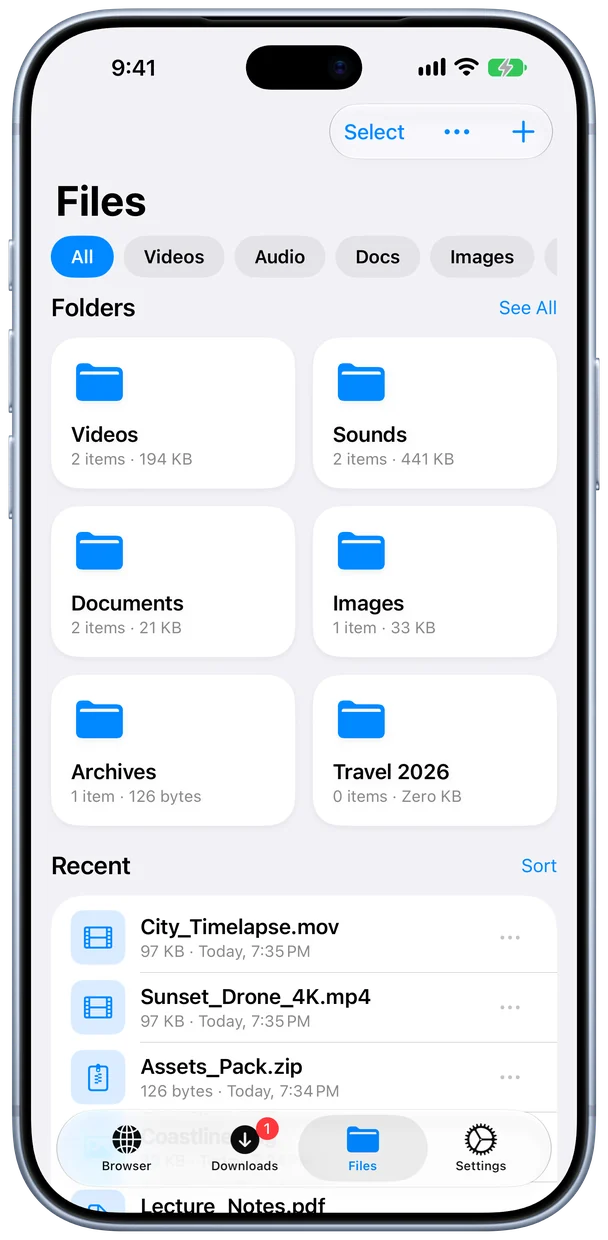
Tap a file to open it: videos play with Picture in Picture, audio keeps playing with the screen locked, photos open in a zoomable viewer and PDFs open in a preview. To work with many files at once, tap Select and copy, move, compress to ZIP, share or delete them in one go.
Is a download manager safe and legal?
A download manager is a tool, like a web browser. What matters is what you download. Download Plus saves direct file links only, and streaming and social services are blocked on purpose to respect creators' rights. Only download files you own or have permission to save — your own uploads, files a teacher or colleague shared with you, public-domain media, or content whose license allows downloading.
On privacy, Download Plus needs no account and collects no data. Your files stay on your device, or in your own iCloud Drive if you turn on iCloud Sync. You can also lock the app with Face ID or a passcode. See the privacy policy for details.
FAQ
Is there a free download manager for iPhone?
Yes. Download Plus is free on the App Store. The free plan covers 5 video downloads up to 720p plus unlimited audio, documents and other files. Lifetime Pro is a one-time purchase, not a subscription.
Can I pause and resume downloads on iPhone?
Yes. In Download Plus every download has pause and resume, and failed downloads can be retried. A download continues from where it stopped when the server supports resuming.
Where are downloaded files saved?
In the app's own folder on your device. You can see it in the Files app under On My iPhone › Download Plus, and inside the app in the Files tab.
Does it work on iPad and Mac?
Download Plus is built for iPhone, iPad, iPhone Duo, Mac and Apple Vision Pro, and one Lifetime Pro purchase works on all of them. Check the App Store page for the devices available today.
The bottom line
If you download more than the odd file, a download manager saves time and keeps your iPhone tidy. Look for background downloads, pause and resume, auto-sorted folders, built-in players and a fair one-time price. Download Plus covers all of these and is free to start.