 Download Plus
You have a link to a video — a lecture recording, a clip a friend shared from their cloud storage, your own upload — and you want it on your iPhone for a flight or a commute with no signal. This guide shows how to download a video from a link on iPhone, where it is saved, and how to watch it offline.
It takes about a minute with Download Plus, a free download manager for iPhone and iPad.
Which video links can you download?
You can download a video when the link points to the video file itself or to a page that includes the file. Typical examples:
- a link that ends in .mp4, .mov or .m4v;
- a download link from cloud storage, a school portal or your company's file server;
- a web page with a video player that loads a regular video file.
Streaming services and social apps are different. They stream video in small pieces, and their terms don't allow saving. Download Plus blocks them on purpose. Only download videos you own or have permission to save.
Method 1: paste the video link
This is the fastest way when you already have the link.
- Copy the link. In most apps, long-press the link and tap Copy.
- Open Download Plus and go to the Downloads tab.
- Tap the field Paste a video or file link, paste, and tap Download.
- Follow the progress, speed and time left. When it finishes, the video is in Files › Videos.
Method 2: find the video on a web page
When the video sits on a page, let the built-in browser find it.
- Open the Browser tab and go to the page.
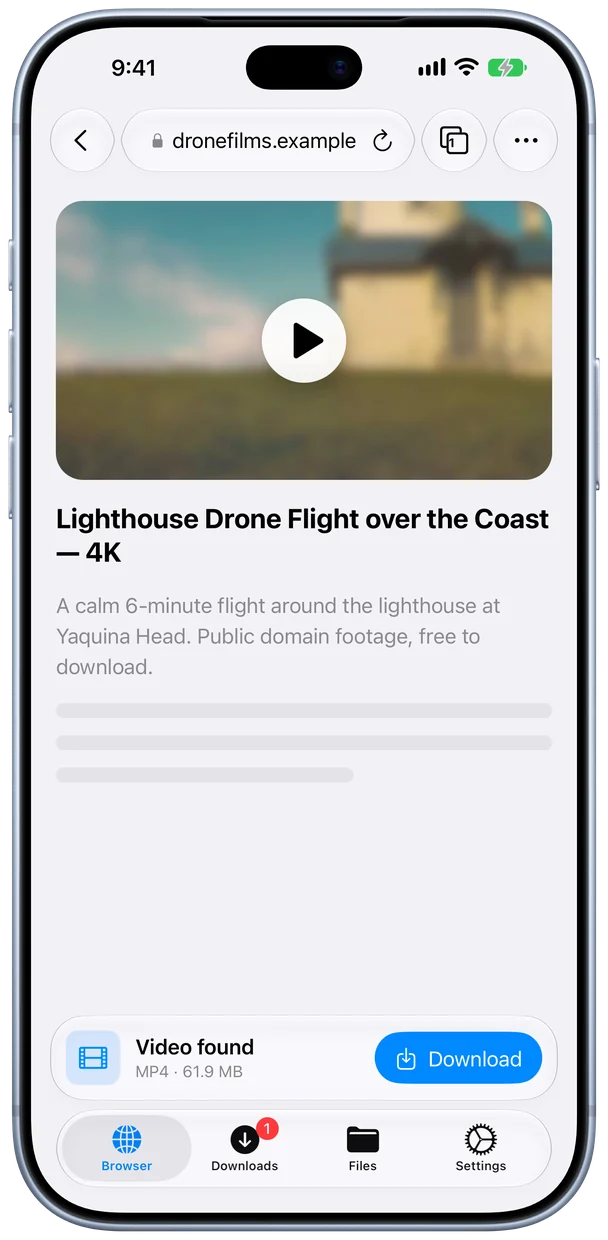
- Download Plus looks for direct video files on the page. When it finds one, a Video found card shows the format, quality and size.
- Tap Download. If you press play on the video first, Download Plus asks whether you want to download it.
You can also long-press any link to a video file and choose Download Link. When a page offers several qualities, pick the one you want. The free plan downloads up to 720p; Lifetime Pro adds 1080p, 2K and 4K.
Method 3: save from Safari's share sheet
Already looking at the page in Safari? Tap the Share button and choose Save to Download Plus. The download starts in the app, and you can keep browsing.
How to watch the video offline
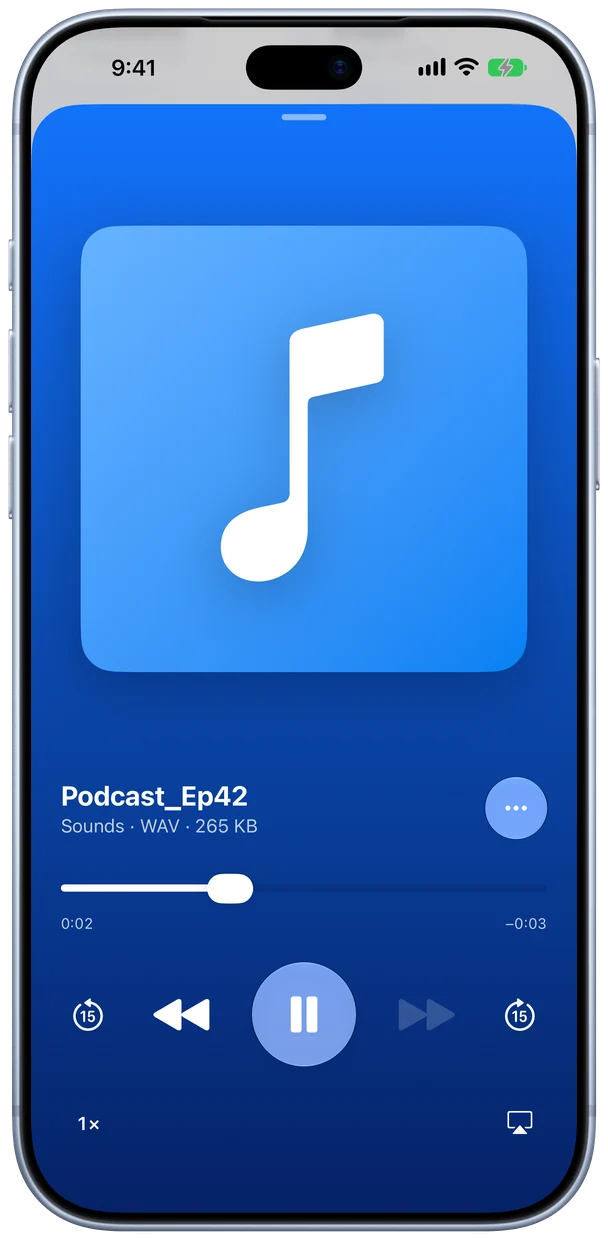
Open the Files tab, then Videos, and tap the video. It plays right in the app, with no internet connection needed.
- Picture in Picture: keep watching in a floating window while you use other apps.
- Save to Photos: select the video and choose Save to Photos to add it to your photo library.
- Share or move: send it to another app, or move it into your own folder.
MP4, MOV and M4V videos play in the built-in player. Other video files, such as MKV or WebM, are saved in Videos and can be shared to an app that plays them.
Troubleshooting
| Problem | What to try |
|---|---|
| No "Video found" card | The page may stream the video or belong to a blocked service. Ask for the direct file link instead. |
| The download stopped | Check your connection and tap Retry. Turn on Use Cellular Data in Settings if you're away from Wi-Fi. |
| "Free limit reached" | The free plan includes 5 video downloads. Lifetime Pro removes the limit. |
| The video won't play | The format may not be supported by the built-in player. Share it to another video app. |
FAQ
Can I download videos from streaming or social apps?
No. Download Plus saves direct file links only. Streaming and social services are blocked to respect creators' rights and App Store rules.
Where is the downloaded video saved?
In Files › Videos inside Download Plus, which you can also see in the Files app under On My iPhone › Download Plus. See where do downloads go on iPhone.
Can I save the video to my Camera Roll?
Yes. Select the video and choose Save to Photos. Download Plus only asks for permission to add to your library, not to read it.
Does watching the video use mobile data?
No. Once the download is finished, the video is on your iPhone and plays offline.
Summary
To download a video from a link on iPhone, paste the link into Download Plus, let the browser find the video on the page, or share it from Safari. The video is saved in your Videos folder and plays offline, with Picture in Picture. Want to compare apps first? Read the best download manager for iPhone.