 Download Plus
Course materials, photo sets, project files and app downloads often come as a single .zip file. The good news: you don't need a computer to open them. This guide shows how to unzip files on iPhone and iPad, how to create your own ZIP to share many files at once, and how Download Plus handles archives you download.
How to unzip a file on iPhone with the Files app
iPhone and iPad can open ZIP files on their own.
- Open the Files app and find the ZIP file.
- Tap it once.
- iOS extracts the contents into a new folder with the same name, right next to the archive.
That's it. Open the new folder to see the files. You can delete the original .zip afterwards to save space.
The Files app handles ZIP archives. Other formats such as RAR or 7Z need an app that supports them.
How to create a ZIP file on iPhone
Sending twenty photos or a folder of documents is easier as one file.
- In the Files app, tap the options button and choose Select.
- Select the files or folders.
- Tap the More button and choose Compress.
The Files app creates Archive.zip in the same folder. Rename it, then share it by email, Messages or AirDrop.
Download and unzip archives in Download Plus
When you download an archive in Download Plus, it goes straight to the Archives folder, so it never gets lost among your other files.
- Extract (Lifetime Pro): tap the ZIP and choose Extract. Download Plus unzips it into a new folder next to the archive.
- Compress (free): tap Select, choose several files, and compress them to a ZIP to share or keep.
- Other archives: RAR, 7Z, TAR and GZ files are saved in Archives, and you can share them to an app that opens them.
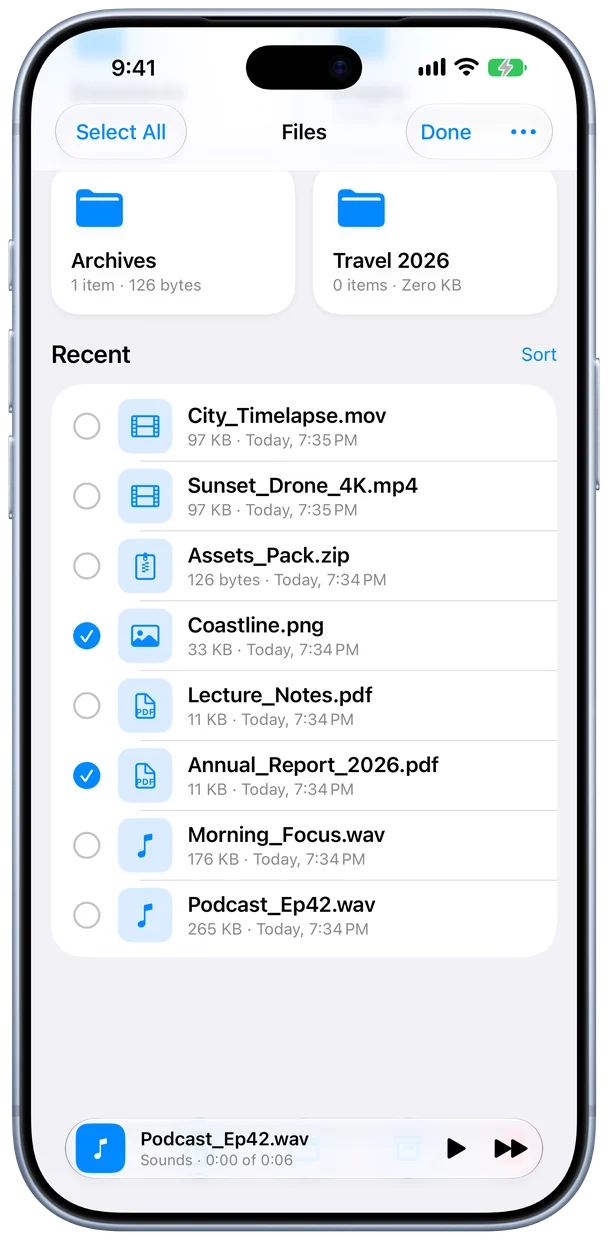
Because Download Plus files also appear in the Files app under On My iPhone › Download Plus, you can always unzip a downloaded ZIP with the Files app method above, even on the free plan.
ZIP file won't open? Try this
| Problem | What to try |
|---|---|
| Nothing happens when you tap the ZIP | The download may be incomplete. Download it again or tap Retry in Download Plus. |
| "The operation couldn't be completed" | The archive may be damaged or use a format iOS doesn't support. Ask the sender for a new copy. |
| Not enough space | A ZIP can expand to several times its size. Free up space in Settings › General › iPhone Storage. |
| It's a RAR or 7Z file | Use an app that supports that format, or ask the sender for a ZIP. |
FAQ
Can iPhone open ZIP files without an app?
Yes. Tap a ZIP file in the Files app and iOS extracts it into a folder next to it.
Where do unzipped files go on iPhone?
Into a new folder with the same name as the archive, in the same location. In Download Plus, extracted files go into a new folder next to the archive, inside Archives.
Is unzipping free in Download Plus?
Extracting ZIP files inside Download Plus is part of Lifetime Pro, a one-time purchase. Creating ZIPs is free, and you can always unzip with the Files app for free.
Can I unzip files on iPad the same way?
Yes. The steps are the same on iPad, in the Files app and in Download Plus.
Summary
To open a ZIP file on iPhone, tap it in the Files app and iOS unzips it into a folder. To create one, select files and choose Compress. Download Plus keeps every archive in its own Archives folder, compresses files for free and extracts ZIPs with Lifetime Pro. New to downloading on iPhone? Start with where do downloads go on iPhone.