 Download Plus
Not every sound file comes from a music service. Lecture recordings, podcast episodes you downloaded, audiobooks without DRM, royalty-free music for a video, voice recordings a colleague sent — they usually arrive as plain MP3 or M4A files. This guide shows how to play MP3 and audio files offline on iPhone, with the screen locked and while you use other apps.
Can iPhone play MP3 files?
Yes. iPhone supports the common audio formats, including MP3, M4A, AAC, WAV, AIFF and FLAC. The question is where to play them:
- The Music app is built for your music library and Apple Music, not for loose files you downloaded.
- The Files app can preview an audio file, which is fine for a quick listen.
- A file player like Download Plus keeps your audio in a library, keeps playing in the background, and gives you lock-screen controls.
Get audio files onto your iPhone
- Download from a link: paste a direct MP3 or M4A link into the Downloads tab of Download Plus, or find it on a page with the built-in browser.
- Share from Safari: tap Share and choose Save to Download Plus.
- Import from Files: in the Files tab, tap + and choose Import from Files to bring in audio you already have.
Audio downloads are unlimited on the free plan, so you can save as many podcast episodes or recordings as you like.
Play audio offline in Download Plus
Downloaded audio goes to the Sounds folder. Tap a file and it starts playing.
- Mini player: keep browsing your files while audio plays at the bottom of the screen.
- Lock screen and Control Center: play, pause and skip without unlocking your iPhone.
- Background playback: audio keeps going when you switch apps or lock the screen.
- Headphones: use the controls on your AirPods or other headphones.
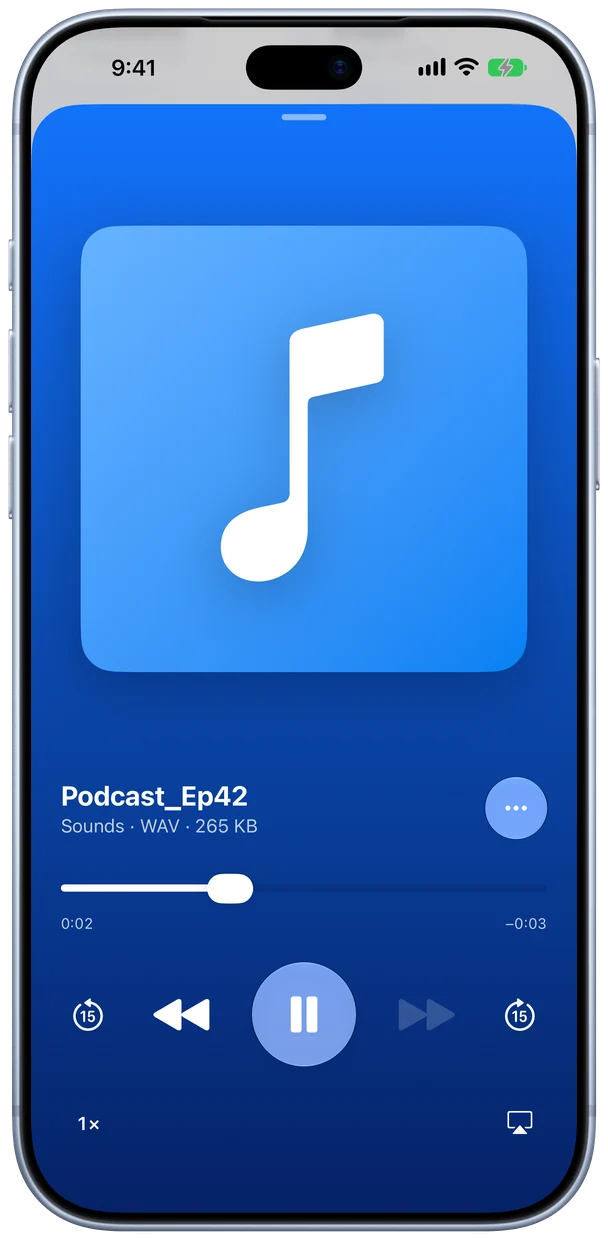
Once a file is downloaded, playback needs no internet connection at all — perfect for flights, the subway or saving mobile data.
Supported audio formats
| Format | Common use | Plays in Download Plus |
|---|---|---|
| MP3 | Podcasts, music, lectures | Yes |
| M4A / AAC | Recordings, audiobooks without DRM | Yes |
| WAV / AIFF | Uncompressed recordings | Yes |
| FLAC | Lossless music | Yes |
Keep your audio library organized
Create folders such as Lectures or Podcasts, rename files so they make sense, and search the whole library instantly. Select several files to move, share or delete them at once. Read where do downloads go on iPhone to learn how the library is organized.
FAQ
Can I play MP3 files on iPhone without internet?
Yes. Once the file is downloaded to your iPhone, it plays offline in Download Plus.
Can audio keep playing with the screen locked?
Yes. Download Plus plays audio in the background, with controls on the lock screen and in Control Center.
Is there a limit on audio downloads?
No. The free plan includes unlimited audio downloads. The free video limit applies only to videos.
Do I need an account or subscription?
No account is needed, and there's no subscription. Lifetime Pro is an optional one-time purchase for unlimited video, higher quality and iCloud Sync.
Summary
To play MP3 and other audio files offline on iPhone, download or import them into Download Plus, open the Sounds folder and tap play. You get background playback, a mini player and lock-screen controls, with no streaming account needed. Want to save the files first? See the best download manager for iPhone.